


CPOS: Tap to Pay Card Reader
4.4155.00 Reviews
App Specs
- Version
- 2.34.0
- Updated On
- License
- Free
- Downloads
- 10,000+
- Developer
- CPOS
- Categories
- Business
- Platform
- Android
Screenshots
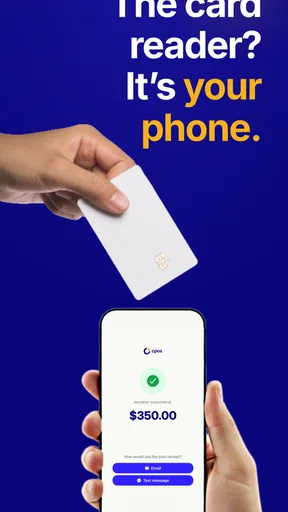
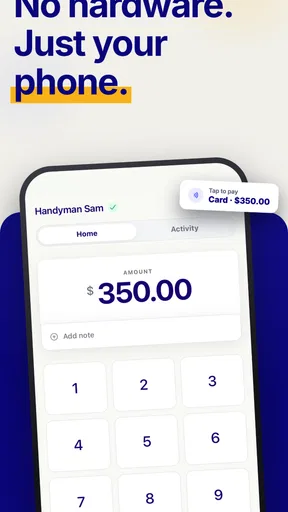
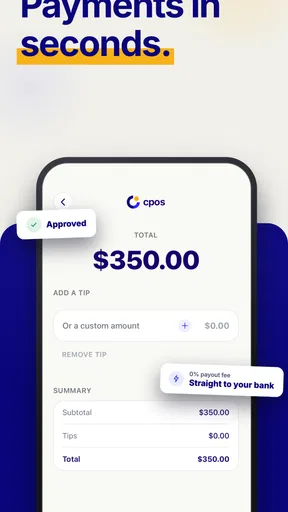
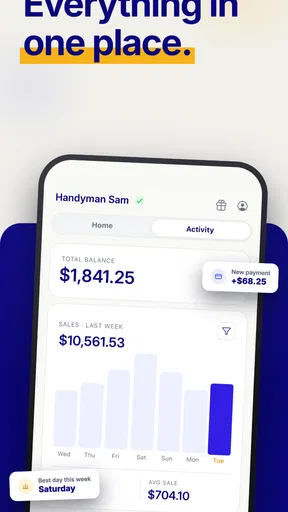
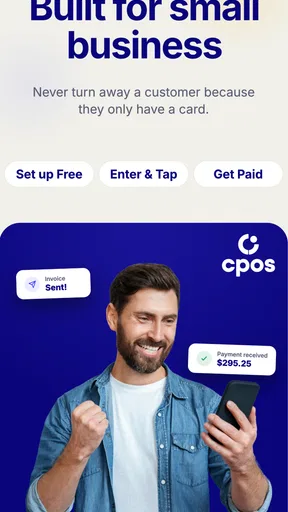
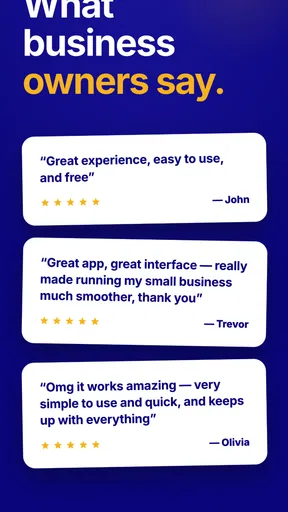
 Analysis by AppCompare
Turning a phone into a card reader sounds simple until a customer is waiting, a payment does not appear to complete, or the phone seems ready while the transaction is not. That is the practical angle I found most useful with CPOS: Tap to Pay Card Reader. It is a free business app from CPOS, aimed at people who want to accept card payments without adding a separate reader to their daily kit. The idea is attractive for independent sellers, mobile workers, small service businesses, and anyone who takes occasional payments away from a fixed checkout.
My overall impression is positive, but I would not treat it as a magic replacement for every payment setup. Its value depends heavily on the phone being prepared, the payment situation being suitable, and the operator knowing how to distinguish an app problem from a card, connection, or device problem. Once that mindset is in place, the app makes more sense: it is a compact point-of-sale tool, not a complete retail system.
Where the smooth experience can become confusing
The first point of friction is expectation. A phone can be a convenient card-acceptance device, but it still has to behave like a payment terminal. I would not open the app for the first time with a customer already standing in front of me. A short practice run helps reveal whether the account, phone, and intended payment flow are ready before money is involved.
The app is listed in the Business category, and that is the right way to think about it. It is not primarily an invoicing suite, inventory manager, accounting package, or customer database. If I needed detailed stock control, staff permissions, product reporting, or a full checkout screen, I would compare it with a larger point-of-sale platform. CPOS is more appealing when the central need is accepting a card payment from a phone with as little equipment as possible.
Another possible stumbling block is the difference between a card being presented and a payment being accepted. A customer may tap too quickly, hold a card in an awkward position, or use a wallet device that does not interact as expected. I would ask the customer to try again calmly rather than repeatedly tapping without checking what the screen says. That small pause prevents duplicate attempts and makes it easier to identify whether the issue is contactless positioning, the card, or the app’s transaction state.
There is also a human-factor issue. A phone used for payments should not be treated like an ordinary personal phone during a busy sale. Notifications, low battery, a locked screen, poor connectivity, or switching between apps can make the process feel less dependable. Even when the software itself is working correctly, a distracted workflow can create uncertainty for both the seller and the customer.
I found the strongest use case to be occasional or mobile selling. A tutor collecting a session fee, a market trader accepting a quick purchase, or a repair professional taking payment at a customer’s location may appreciate carrying one less device. The benefit is less about adding sophisticated business management and more about reducing the physical barrier between “I need to accept a card” and “I can start the payment process.”
Worth Reading Before You Choose

EA SPORTS FC Mobile 26 Is a Bigger Football Game, but It Takes Time

Flipboard Shows What News Apps Must Do Beyond the Feed

Switching to Android Auto Means Rethinking Your Driving Routine

Google Calendar Makes a Crowded Week Easier to Manage

Ludo King Makes the Most of the Minutes Between Plans

Baby Panda World Brings Quick Play to Modern Phones, but Its Game Library Feels Busy
What I would check before the first real payment
Before relying on the app, I would confirm that the phone meets its stated operating-system requirement. CPOS supports Android 8.0 and later, so an older device should not be assumed to work simply because the application can be found or installed. I would also keep the app updated; the current version is 2.34.0, and staying current is a sensible first step when troubleshooting compatibility or transaction behavior.
I would prepare the phone as a dedicated work tool for the payment period. That means charging it, closing unnecessary apps, and making sure the screen is easy to read in the environment where customers will pay. Bright outdoor light, glare, thick protective cases, and a crowded counter can all make a short interaction less comfortable. These are not glamorous details, but they matter more in practice than the promise of a hardware-free setup.
Connectivity deserves a deliberate check. A seller should know whether the phone will use a reliable mobile connection or a trusted Wi-Fi network at the place of work. If the connection is unstable, I would not interpret a delayed response as an immediate decline. I would first look at the transaction status and avoid starting another attempt until I know whether the first one finished.
I would also decide on a simple confirmation routine. After each payment, I would check the result shown by the app before handing over goods or ending the appointment. For a small business, this is a useful habit because it separates a successful transaction from a customer merely seeing a card prompt or an interrupted screen. It also protects against the common mistake of relying on a customer’s bank notification as the only proof that the seller’s transaction was completed.
The first practice session should be treated as a workflow test rather than a performance test. I would go through opening the app, preparing a transaction, presenting a payment method, checking the result, and returning to a ready state. The goal is to learn where the amount appears, what confirmation looks like, and how to recover if I back out accidentally. That knowledge is especially valuable when the app is used only once or twice a week.
Small preparation choices that make a big difference
I would keep the payment phone physically separate from the phone used for calls, photographs, and constant messaging whenever possible. This is not required to understand the app, but it creates a cleaner routine. Fewer interruptions mean fewer opportunities to lose the transaction screen or confuse a completed payment with an unfinished one.
I would set up a visible place for the phone so the customer can see the payment prompt without the seller turning the device away. That improves trust and reduces the need to explain every step. It is also easier to notice whether the customer has tapped the right area or whether the app is still waiting for action.
For repeated sales, I would write down a short internal checklist rather than relying on memory: wake the phone, open the payment app, verify the amount, wait for the final result, and only then complete the handoff. The checklist is not a feature of CPOS; it is a practical way to make a small-screen payment process consistent when the surrounding work is hectic.
One trade-off is that removing dedicated hardware does not remove operational responsibility. A separate terminal often feels more purpose-built because it is always ready for payments. With CPOS, the phone itself becomes part of the terminal, so battery, software state, connectivity, and physical handling all matter. For a low-volume seller that trade-off may be worthwhile. For a busy shop processing payments continuously, dedicated equipment may still feel more comfortable.
Recovering cleanly when a payment does not go as planned
When a transaction appears stuck, I would resist the instinct to force-close the app immediately. First I would read the screen carefully and wait briefly for a clear result, especially if the customer has already presented a card. Restarting too quickly can make it harder to know whether the original attempt completed. The safest general approach is to establish the status of the current attempt before creating a new one.
If the customer’s card does not work on the first try, I would ask for a second presentation with the card held steadily near the phone’s payment area. If that fails again, trying another card or payment method can help identify whether the problem follows the customer’s card rather than the application. I would avoid repeatedly charging the same amount without checking each result, since uncertainty is more damaging than taking a moment to reset the workflow.
A useful recovery pattern is to return to a clearly idle state before retrying. If the app shows a completed result, I would not start another payment just because the customer’s banking notification has not appeared yet. If it shows a failure or cancellation, I would begin a fresh attempt only after confirming the amount. This simple separation between completed, failed, and unknown states is one of the most important habits for avoiding duplicate charges.
If the phone becomes unresponsive, I would first check whether the problem is limited to CPOS or affects the entire device. Trying to interact with another ordinary screen can reveal whether the phone itself is frozen. If the whole phone is slow, the better response is general device recovery: wait, close unnecessary activity when possible, and restart only when the transaction state is understood. If other functions work normally, reopening the app may be a reasonable next step.
I would keep a basic written record during a disputed moment: the approximate time, amount, customer name or order reference if appropriate, and what the app displayed. I would not record sensitive card details. This note can prevent confusion later, especially when several customers are served close together and one payment needs to be checked.
For a seller working alone, the best recovery language is straightforward: explain that the payment screen is being checked, do not promise success before confirmation, and offer an alternative method if the situation remains uncertain. Customers generally respond better to a clear pause than to multiple unexplained attempts. The app can support a compact workflow, but good payment handling still depends on the person operating it.
When the app is not the cause
Not every failed payment points to CPOS. A declined card may be restricted by the card issuer, unavailable for the intended type of transaction, or affected by a customer-side issue. A contactless card can also fail while another card works normally. Testing logically, one variable at a time, is more useful than reinstalling the app after every unsuccessful tap.
The phone can be another source of trouble. An unsupported operating system, a damaged or poorly positioned device, low power, aggressive battery management, or a weak connection can interrupt a payment workflow. I would check these basics before concluding that the application is unreliable. In particular, a phone that is struggling with several tasks at once is not a fair test of a payment app designed to be used as the active checkout screen.
Network conditions can create the most misleading symptoms. A slow connection may make the app appear to be waiting, while the payment service or bank is still processing the request. That is why I would avoid duplicate attempts and preserve the original transaction details until the result is clear. If the same issue happens across different cards and locations, then it becomes more reasonable to investigate the account or service side rather than blaming a single card.
There is a limit to what a phone-based reader can solve. CPOS can reduce the need to carry a separate reader, but it cannot remove bank authorization decisions, customer card problems, environmental interference, or the need for a reliable device. This distinction matters when deciding whether the app is suitable for a business. Convenience is real, but it is conditional.
Who should choose it, and who should look elsewhere?
I would recommend CPOS to a small operator who values portability and wants to keep the payment setup light. It makes particular sense when payments are occasional, the seller already carries a compatible phone, and the business does not need a deep collection of retail tools. The free price makes experimentation easier, and the Everyone age rating keeps the app broadly accessible from a content perspective.
I would be more cautious for a high-volume store, a team with several employees, or a business that needs detailed reporting and tightly controlled checkout procedures. In those situations, a conventional terminal or a full point-of-sale system may be a better fit even if it costs more or requires extra hardware. The right comparison is not simply “phone versus reader”; it is “minimal payment acceptance versus a complete operating system for the business.”
The app also may not suit someone who wants payment acceptance to work independently of their personal device habits. If the same phone is constantly used for navigation, calls, entertainment, and photography, the seller will need more discipline to keep transactions orderly. A dedicated terminal is often easier for staff because its purpose is obvious and its workflow is less exposed to unrelated phone activity.
On the other hand, a freelancer who visits customers could benefit from having a payment option available without carrying a bulky kit. The same is true for a small event seller who wants to accept cards during a limited selling window. In those cases, the occasional setup checks are a reasonable exchange for portability.
How it compares with the usual alternatives
Compared with cash, CPOS offers a more convenient option for customers who do not carry notes, but it introduces dependence on the phone and payment connection. Cash is immediate from the seller’s perspective once counted, while a phone-based card flow requires attention to confirmation and transaction status. I would keep a backup payment method for situations where the device, connection, or card is not cooperating.
Compared with a standalone card reader, CPOS is lighter and potentially cheaper to start using because the phone performs the reader role. The reader, however, may feel more stable during long periods of repeated transactions. It is also less likely to be interrupted by personal notifications or unrelated phone activity. For a busy counter, that dedicated focus can outweigh the convenience of carrying one device.
Compared with a complete point-of-sale platform, CPOS appears best understood as a focused payment tool. A larger system may be preferable for product catalogs, receipts, inventory, employee access, customer records, and business reporting. I would choose CPOS when those extras are not central, rather than expecting it to grow into a full retail back office.
The most sensible approach for many small businesses is to treat it as one part of a payment plan. Use it for mobile or occasional transactions, establish a clear confirmation routine, and keep an alternative available for outages or unsuitable circumstances. That gives the app room to be useful without asking it to solve every operational problem.
My practical verdict
CPOS: Tap to Pay Card Reader is a convincing option for people who want a compact way to accept card payments through a phone. Its strongest advantage is practical: less equipment to carry and a lower barrier to trying phone-based card acceptance. CPOS has reached over ten thousand installs, with an average rating of 4.4 from around two hundred ratings, which suggests a modest but encouraging user response rather than the scale of a long-established mainstream platform.
The developer is CPOS, and the app was released on January 17, 2025, so I see it as a relatively new business tool rather than a deeply mature replacement for every checkout environment. That does not make it a poor choice; it simply reinforces the need to test the workflow on the actual phone and in the actual place where payments will happen.
My recommendation is to start with a controlled trial: prepare the device, run through the payment flow without rushing, learn how the app signals completion, and decide how you will handle an uncertain result. If that routine feels natural and your business only needs straightforward card acceptance, the free app is worth considering. If you need a full retail system, constant high-volume reliability, or a dedicated terminal experience, I would choose a more specialized alternative instead.
In short, I like CPOS most as a focused tool for mobile sellers and small operators. Its real strength is removing equipment from the payment routine, not removing the need for a careful payment routine. That distinction sets realistic expectations and makes the app much easier to use responsibly.
Pros
- Accepts contactless payments directly from compatible smartphones.
- Reduces the need for dedicated card-reading hardware.
- Useful for mobile sellers
- freelancers
- and small businesses.
- Can make checkout faster for customers using digital wallets.
- Portable setup works well for pop-up shops and events.
Cons
- Requires a compatible NFC-enabled device to process tap payments.
- Availability and features may vary by country or region.
- Transaction fees can reduce earnings on smaller purchases.
- A reliable internet connection may be needed during checkout.
- Battery drain can be noticeable during extended payment sessions.
FAQs for CPOS: Tap to Pay Card Reader
What is CPOS: Tap to Pay Card Reader?
CPOS: Tap to Pay Card Reader is a mobile point-of-sale solution designed to let businesses accept card payments using a compatible Android or iOS device. Instead of requiring a traditional payment terminal, the app can use supported contactless technology to process tap-to-pay transactions. It may also provide tools for viewing payments, managing sales, and keeping business transactions organized from one device.
Does CPOS support every phone and payment card?
No. Compatibility depends on the device, operating system, NFC availability, and the payment services supported in your country or region. Tap-to-pay features generally require an NFC-enabled phone and may be limited to specific Android or iPhone models. Customers also need a compatible contactless card or digital wallet. Before downloading, check CPOS requirements and confirm that your merchant account and payment provider are supported.
Is CPOS: Tap to Pay Card Reader safe for accepting payments?
CPOS is intended to process payments through established card-payment infrastructure, but security also depends on your device, account settings, and payment provider. Use the latest app version, protect your phone with a passcode or biometric lock, and avoid installing the app from unofficial sources. You should also review the provider’s encryption, authentication, dispute, and transaction-protection policies before using it for regular business sales.
Are there fees for using CPOS Tap to Pay?
The app itself may be free to download, but accepting payments usually involves transaction fees, processing charges, or other costs determined by the connected payment provider. Pricing can vary according to card type, country, business category, payout schedule, and optional services. Review the current fee table, terms of service, and any account or hardware charges carefully, since the final cost may not be visible from the app listing alone.
Can CPOS be used without an internet connection?
Tap-to-pay applications normally require an active internet connection to authorize and complete transactions, although specific offline options may depend on the service provider and account configuration. If your connection is unstable, payments may be delayed, declined, or unavailable. Before relying on CPOS at markets, events, or mobile locations, test it in advance and prepare a backup payment method, such as another terminal or cash option.


